

Resources
Everything to use D4A: what you need, the console step by step, what your IT team will ask, and each task, from putting a limit to retiring an organization.
What you need
Before you start
You need four things:
- A Microsoft work account in your company's Microsoft tenant. You sign in to the console with it.
- Agents in Microsoft Foundry that call their tools over MCP. D4A governs what passes through your gateway; a Foundry built-in tool never passes through it.
- An Azure subscription where your account may create resources (Owner or Contributor). D4A creates your gateway there, and Azure bills you for the machine.
- A D4A subscription from Microsoft Marketplace. Your organization is created when you subscribe. See Plans.
The console is at api.diacroma.com/console. A session lasts 60 minutes. Five minutes before it ends, the console shows Your session ends in 5 minutes. with a button Stay signed in. If it ends, sign in again with Microsoft and you come back to the same page.
How to read each step
Each task is a numbered list of steps. Each step answers five questions:
| Where | The screen, and the place on it. |
|---|---|
| Do | What you press or type, exactly. |
| You should see | What tells you the step worked. |
| What it means | What just happened, in plain words. |
| If you see something else | What to do instead. |
Words from the console are shown as they appear on screen, in English: a button or a field looks like Approve <agent> as checked, and a message looks like Approved item by item. Revision 3 minted. Parts that change, such as an agent's name or a number, are written in angle brackets: <agent>.
The names in the examples (purchasing-agent, create_po, issue_refund) are examples. Use your own agents and tools.
The seven screens
The left side of the console, under Your steps, lists seven screens in the order you use them the first time. The console marks the step that comes next.
- Login
- Settings
- Discover
- Scan
- Policies
- Gateway
- Status
| Screen | What you do there |
|---|---|
| Login | Sign the agreement once. Its tabs hold your organization: name, notices e-mail, plan, members, and retiring it. |
| Settings | How D4A works for your whole organization: the mode, your rules, the time zone of your limits, notices. Every change is signed with your reason. |
| Discover | D4A lists the agents in your Foundry projects. It only reads. |
| Scan | D4A reads each agent's instructions and proposes limits, each with the sentence it comes from. |
| Policies | You approve those limits, all at once or one agent at a time under Advanced. Approving signs them in your name. |
| Gateway | The checkpoint between your agents and their tools. D4A creates it in your Azure, and you point your agents at it. On our site it is called the Boundary. |
| Status | What your gateway stopped, the cases that wait for a person, and every check, measured right now. |
Every screen has three tabs at the bottom: Info (a status light and the facts), Settings and Advanced.
Who can do what
| Role | What it can do |
|---|---|
| Owner | Everything: sign the agreement, discover, approve, members, gateways, the plan, retiring the organization. There is one owner per organization: the person who created it. |
| Policy authority | Approves and signs policy for the agents; signs Settings; scans. |
| Reviewer | Reads everything and closes review cases. Cannot sign. |
If you press something your role cannot do, the console answers role_required.
Step by step
The first time, you go down the seven screens in order, once. Then your agents are governed.
Open your organization
For: getting into the console the first time, or when you have more than one organization.
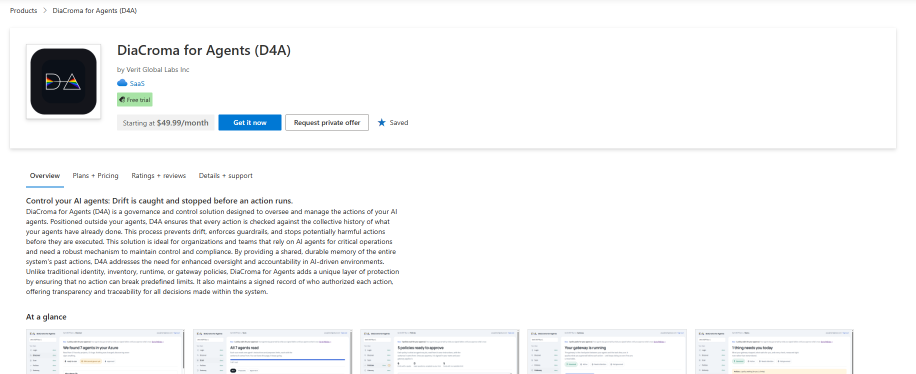
Subscribe on Microsoft Marketplace
- Where
- Microsoft Marketplace, the DiaCroma for Agents offer.
- Do
- Subscribe to a plan. Then, in the Azure portal, open your D4A subscription and press Configure account now.
- You should see
- The console opens, on the Login screen.
- What it means
- Your organization is created when you subscribe. It is the scope every policy is signed for.
- If you see something else
- If you already configured it, the Azure portal shows Open SaaS Account on publisher's site instead: press it.
Sign in with Microsoft
- Where
- api.diacroma.com/console, if you are not signed in: the page says Sign in to see your agents.
- Do
- Press Sign in with Microsoft → and sign in with your work account.
- You should see
- With one organization, you land on the Login screen. With several, on Choose your organization.
- If you see something else
- Sign-in did not complete: nothing was created and nothing was lost. Sign-in links are single use and short lived. Go back to the console and press Sign in with Microsoft again.
- Your organization starts in Azure: this account has no D4A organization. Either you have not subscribed yet, or you subscribed with another Microsoft account. Sign in with that one.
Choose your organization (only if you have several)
- Where
- Choose your organization. The one with a live gateway comes first, then the newest.
- Do
- Press Enter on the organization you want.
- You should see
- The Login screen of that organization. Its name is at the top, before the screen name.
Keep your API key and recovery code (only when an organization is created)
- Where
- Organization created — you are its owner.
- Do
- Copy the API key and the Recovery code to a safe place. Tick I have saved both somewhere safe, then press Continue to your console →.
- What it means
- Neither is shown again: D4A keeps only their hashes. The console itself never needs the API key; it is for integrations.
Sign the agreement
For: the one thing to agree to before any agent is touched. Owner only.
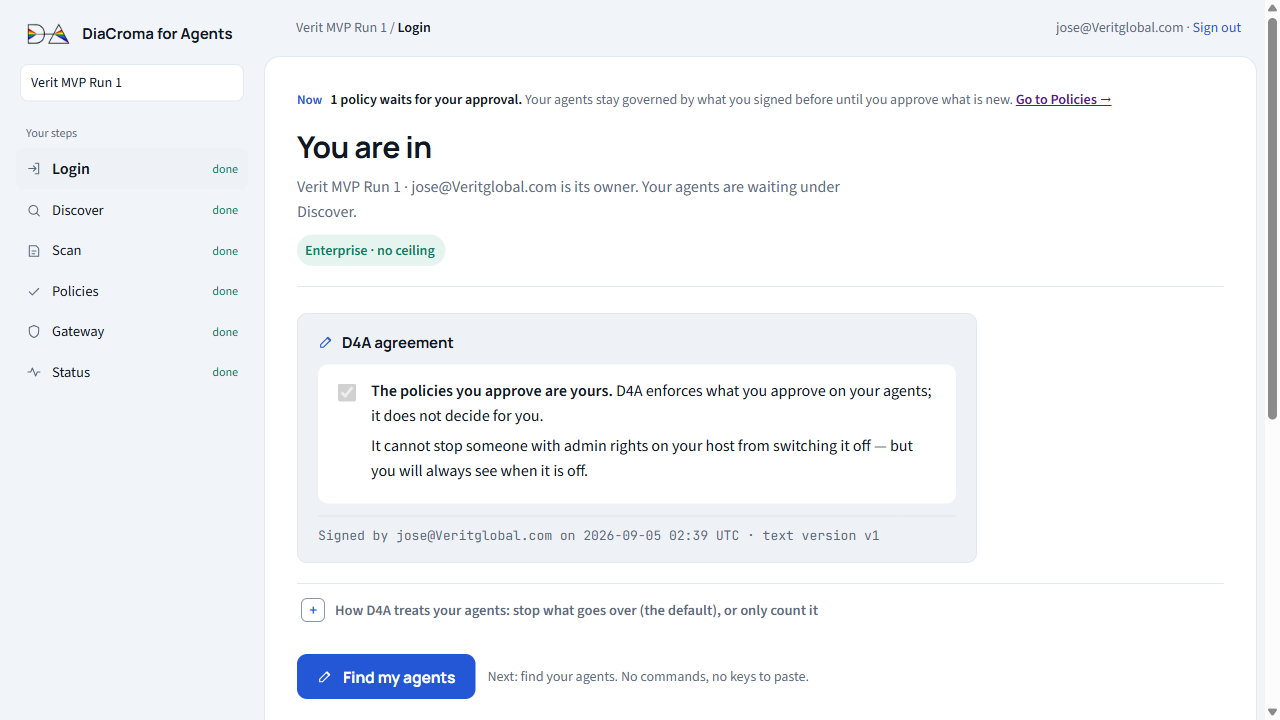
Read and tick the agreement
- Where
- Login screen, titled Sign the agreement, the box D4A agreement.
- Do
- Tick The policies you approve are yours.
- What it means
- D4A enforces what you approve on your agents; it does not decide for you. It cannot stop someone with admin rights on your host from switching it off, but you will always see when it is off.
- If you see something else
- Only the owner, <email>, can sign the agreement.: ask the owner to sign in and do it.
Choose how D4A treats a newly approved agent
- Where
- Same screen, the folded section How D4A treats your agents: only count what goes over (the default), or stop it.
- Do
- Choose Observing or Enforcing.
- You should see
- Signed: new agents will be approved as Enforcing. (or as Observing). There is no save button: choosing signs it.
- What it means
- Observing counts what it would have blocked and blocks nothing. An observing agent is not protected.
- Enforcing blocks anything over the limit. The console marks it Recommended.
- It applies when an agent is approved for the first time. You can change it for one agent later (Change how hard D4A stops one agent).
- Strict and Explicit are grey here. They need your company's rules connected, and you choose them in Settings or per agent.
Sign
- Do
- Press Sign and continue.
- You should see
- The console moves to the Settings screen. Back on Login, the title reads You are in, and the Info tab shows Accepted <date> by <you>.
- What it means
- The agreement is recorded once, with your e-mail and the time. Nothing is read from your tenant before it.
- If you see something else
- Tick the box first: the policies you approve are yours.: go back to step 1.
Choose your settings
For: how D4A works for your whole organization. A Policy authority or the owner signs it.
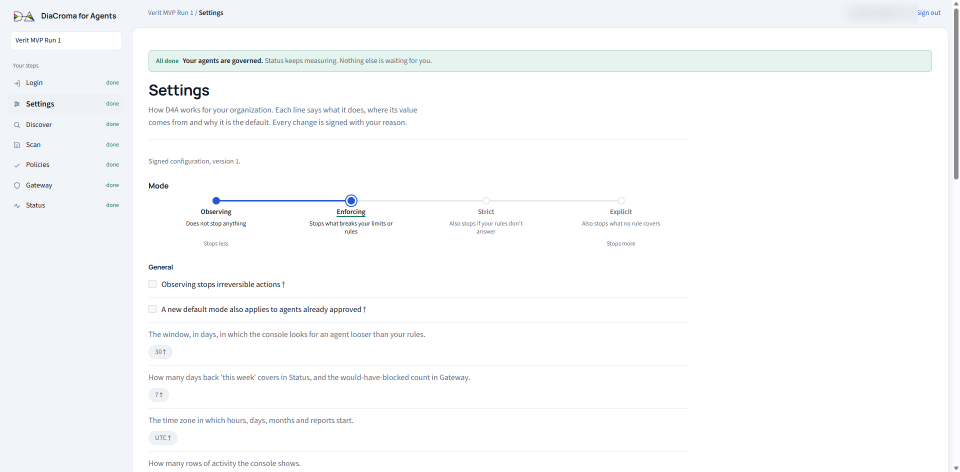
Settings is a list of lines in six groups: General, Your rules, Who calls, Kinds of action, How much and Notices. Each line says what it does, where its value comes from and why it is the default. A line marked † cannot be chosen yet.
Read the lines that matter first
- Where
- Settings screen.
- Do
- Look at least at these:
- Mode, at the top, from Observing (stops less) to Explicit (stops more).
- The time zone in which hours, days and months of your limits start. UTC if you set none.
- A negative amount stops the call unless the signer declares it.
- Hours start on the UTC hour, not the local hour.
- Under Your rules, what each rules engine's no does for agents approved from now on: Stops or Counts.
- Under Notices, which notices are sent by e-mail.
Accept the defaults, or change and sign
- Do
- Either press Accept the default configuration, or change a line, write Why you change it, and press Sign these changes.
- You should see
- Signed: you accepted the default configuration. or Signed: version <n>. At the top: Signed configuration, version <n>.
- What it means
- Every change is signed with your name and your reason. Each line then shows Changed by <you> on <date>: <reason>.
- If you see something else
- Say why you change <line>: every change is signed with its reason.: write the reason under the line you changed.
- company_policies_missing — Connect your company's policies to use Strict and Explicit.: connect your rules first (Connect your OPA or Cedar rules).
- gateway_cannot_enforce — your gateway cannot enforce this yet; update it first: your gateway updates itself within 10 minutes. Try again then.
- settings_moved — another signature arrived first; re-read Settings: reload the page and do it again.
Export JSON downloads your settings as a file.
Find your agents
For: listing every agent in the Foundry projects your account can see. Owner only. Nothing is changed and nothing is signed.
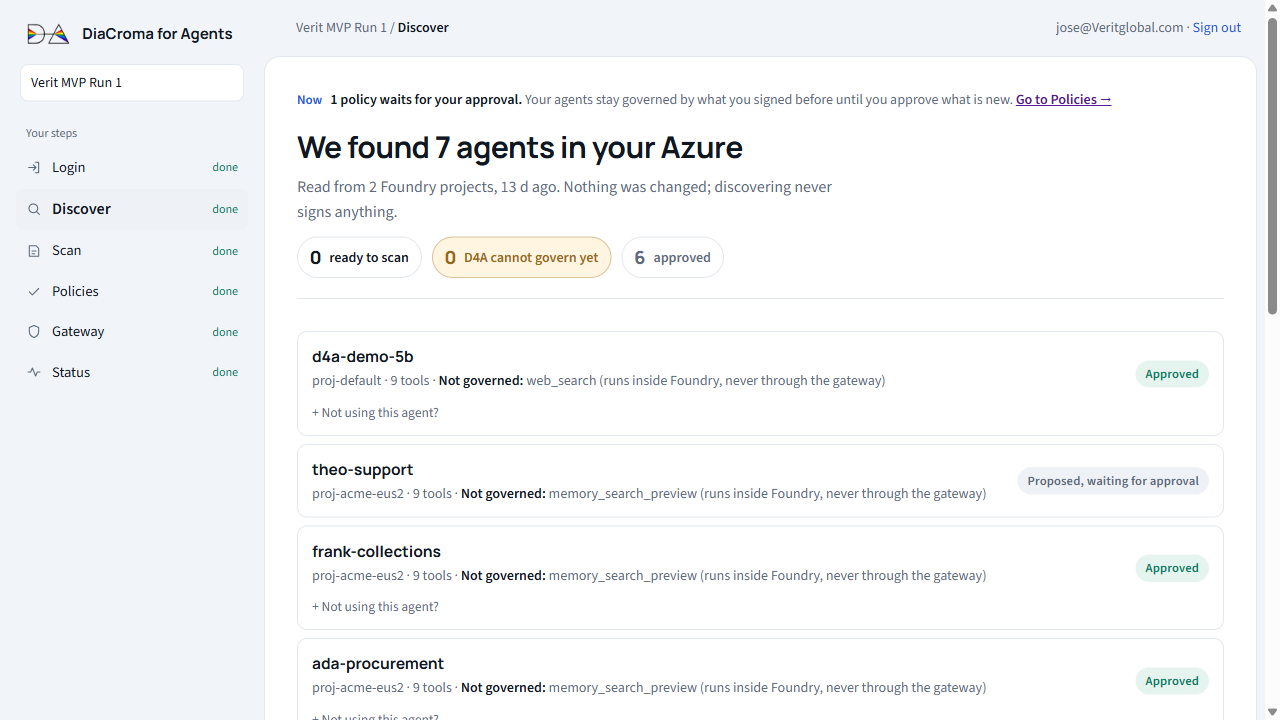
Discover with Microsoft
- Where
- Discover screen, titled Let's find your agents.
- Do
- Press Discover with Microsoft. In the Microsoft window, sign in.
- You should see
- The window says Census finished, then closes itself. The page shows Discovered: <n> agents in <n> project(s). and the title becomes We found <n> agents in your Azure.
- What it means
- The first time, Microsoft asks you to sign in twice: once for Azure, once for Foundry. Both are needed; nothing is changed in either.
- If you see something else
- (no Foundry projects visible to this account): this account cannot see your Foundry projects. Sign in with one that can.
- Could not reach your Azure: nothing was scanned. Press the button again.
Read each agent's label
- Where
- The list of agents.
- You should see
- One label per agent:
Label What it means Ready to scan D4A can read it. Go on to Scan. Read after Gateway In Foundry the agent does not list which tools it may use, which is Foundry's default. Nothing is broken: once it points at your gateway, the gateway tells D4A its tools. D4A cannot govern it yet Open + How to make it governable for the reason and the fix. The usual reason: its tools are not an MCP connection, so they never pass through your gateway. The other agents are not affected, and it is not counted or billed. Proposed, waiting for approval Scanned; its limits wait in Policies. Approved Its policy is signed. Changed since approval It changed in Foundry. See An agent changed in Foundry.
Go to Scan
- Do
- Press Scan the <n> ready agents.
- You should see
- The Scan screen, with the agents queued.
Without Microsoft sign-in. Under Advanced you can discover one project by hand: paste the Foundry project endpoint (Foundry portal → your project → Overview) and an Access token (not stored) from your Azure CLI, then press Discover this endpoint. Same census, same result.
Read your agents
For: D4A reads each agent's instructions and proposes limits, each with the sentence it comes from. It takes about ten seconds per agent, and you can leave the page.
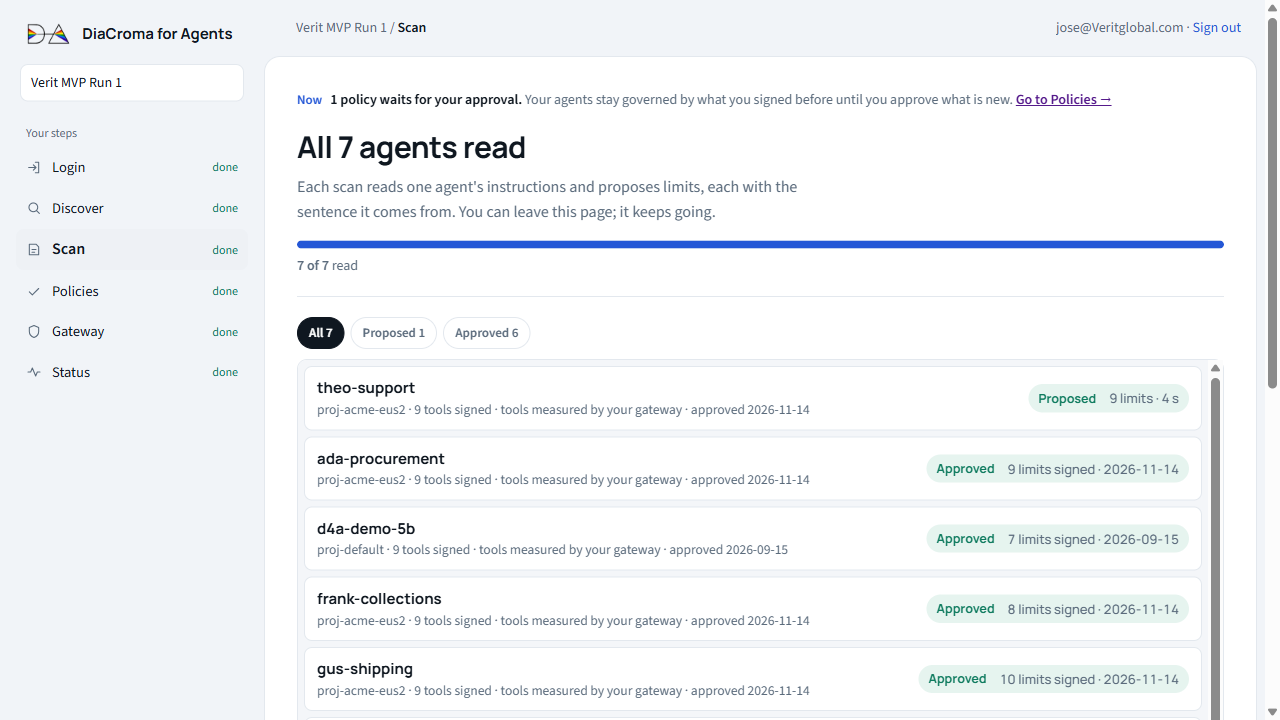
Start the scan
- Where
- Scan screen.
- Do
- Press Scan the <n> waiting →, unless Discover already queued them.
- You should see
- <n> queued. You can leave this page; it keeps going. The title reads Reading your agents, and the page refreshes itself.
Wait for each agent's result
- You should see
- The title becomes All <n> agents read. Each agent shows Proposed with its number of limits, or Read when there is nothing to approve.
- What it means
- Open an agent to see each proposed limit with the sentence of its instructions it comes from, and its open questions: a tool with no limit found, a tool with a per-call cap but no total, or a document its instructions cite that was not delivered.
- If you see something else
- Failed: the reason is under the agent. Scan again re-queues it.
- Read after Gateway: point it at your gateway first; then it is read here.
- Needs a fix: fix the agent in Foundry and run Discover again.
Go to Policies
- Do
- Press Approve the <n> proposed →. You can approve as they come in; the rest join when they finish.
Approve their policies
For: signing, in your name, what each agent may do. Your gateway then applies it.
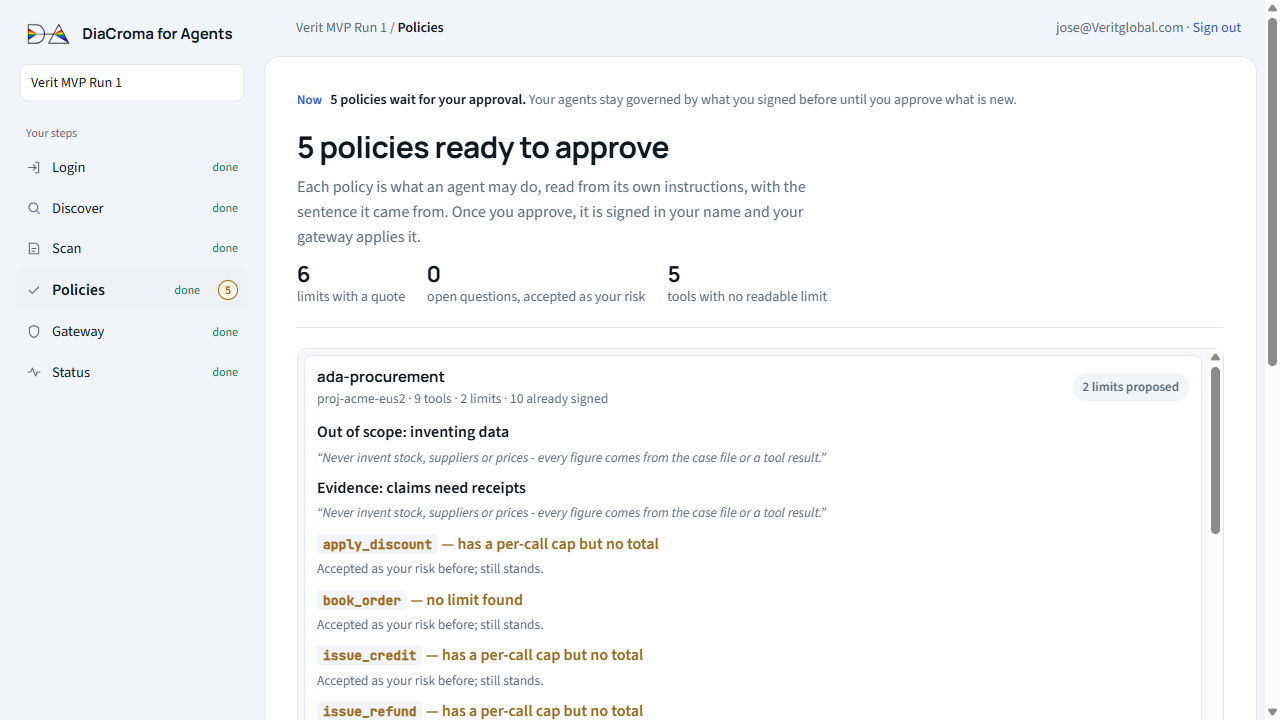
The big button signs every agent that waits. Approve all <n> as proposed approves all of them at once, not only the one you are looking at. To approve one agent, use Advanced (step 3).
Read what is proposed
- Where
- Policies screen. The title says how many policies are ready, for example 3 policies ready to approve.
- Do
- Open each agent. Read each limit and the quote under it.
- What it means
- Each limit is read from the agent's own instructions. An open question is accepted as your risk unless you answer it (Put a cap on an open question).
- If you see something else
- Please check these doubtful limits: D4A may have read a limit backwards when it was approved. Read each line; if today's reading is right, press Correct it. It signs a new revision with only that change.
Approve all as proposed
- Do
- Press Approve all <n> as proposed. If there are open questions, the button reads Approve all <n> as proposed, accepting the open questions as my risk and asks you to confirm.
- You should see
- <n> approved. Each approval minted a signed revision; your gateway picks them up on its own.
- What it means
- The signature records what you saw, what you decided, and when. An approval stands until the agent changes in Foundry.
- If you see something else
- plan_full: your plan governs fewer agents than you are approving. Those that fit are approved; the others wait for a bigger plan. Nothing that already governs stops.
Or approve one agent, item by item
- Where
- Advanced, at the bottom of Policies.
- Do
- In Agent, choose the agent. Untick a limit to leave it out. Then press Approve <agent> as checked, for example Approve purchasing-agent as checked.
- You should see
- Approved item by item. Revision <n> minted.
- Check first
- The button names the agent it will sign. Read it before you press it.
- If you see something else
- No agent has a proposal to review yet.: Advanced only lists agents with a scan. Scan the agent first.
Create your gateway
For: the checkpoint between your agents and their tools, in your own Azure. Every call an agent makes to its MCP tools passes through it. It checks the call against what you approved, stops what goes over, and records what it stopped. It keeps enforcing even if we are unreachable.
Start
- Where
- Gateway screen, titled Install your gateway, the box 1 · Install, once.
- Do
- Press Create my gateway in Azure. Sign in in the Microsoft window with the account that has your Azure subscription.
- You should see
- This is what goes into your Azure, with a subscription and a region already chosen: the ones where your agents are.
- If you see something else
- Your Microsoft account has no Azure subscription D4A can use.: sign in with the account that has your Azure subscription.
Read what will be created, and confirm
- Do
- Read the four lines, then press Create it in my Azure.
- What it means
- What is created: one Linux virtual machine with the gateway (2 vCPUs), a public address (port 443 for your agents, port 80 only for its certificate) and its own identity, all in one new resource group.
- Who pays: you, on your Azure bill, like any machine of yours. It is not part of your D4A plan.
- What D4A does: creates this one resource group and what is in it, and removes it when you ask.
- What you need: your account must be allowed to create resources in that subscription (Owner or Contributor).
Wait for both steps to say “done”
- You should see
- Two rows: Azure creates the machine, then The gateway installs itself, each turning to done. Then the title reads Your gateway is installed — point your agents at it to start it.
- If you see something else
- Your subscription has no room for this machine there.: choose another region, or ask Azure for more quota.
- After 20 minutes: Your gateway was created more than 20 minutes ago and has not called D4A. Press Remove it and try again. Removing deletes only the resource group D4A created.
On your own Linux machine instead. Under Advanced, Install it yourself instead gives you a one-use command for a Linux host with Docker, outside Azure or in a network you manage. Run it there and paste the token when the installer asks. Run it again any time to update; your policies and state stay.
Point your agents at it
For: making each agent's calls go through your gateway. D4A writes a new connection into each agent in Foundry; you see exactly what would change before anything is written.
Ask for the plan
- Where
- Gateway screen, the box 2 · Point your agents at it.
- Do
- Press Point <n> agents at the gateway. Approve the Microsoft window.
- You should see
- Nothing has been written yet. This is the plan: <n> agents would change. Under it, each change, with its value before and after.
- What it means
- Every change carries the value it had before; that receipt is what undoes it. Each agent gets its own connection,
d4a-<agent>, with a token the console mints, writes there, and never shows.
Apply it
- Do
- Press Point these <n> agents now, or Close without writing. Keep the page open for a few seconds.
- You should see
- One line per agent: <agent>: connected and pointed.
- If you see something else
- <agent> has no MCP tool in Foundry: there is nothing to point.: add an MCP tool to it in Foundry, then run Discover again.
- Your gateway cannot read your servers' credentials yet: ask an owner of that Foundry project to press Give your gateway access to your Foundry once, from this screen.
Undo, if you need to
- Do
- Press Undo the last pointing. It appears only after a pointing, on the same page, for 15 minutes.
- You should see
- <agent>: back to the value the receipt kept (re-read to check).
Check that every agent is governed
For: knowing that the gateway applies exactly what you approved.
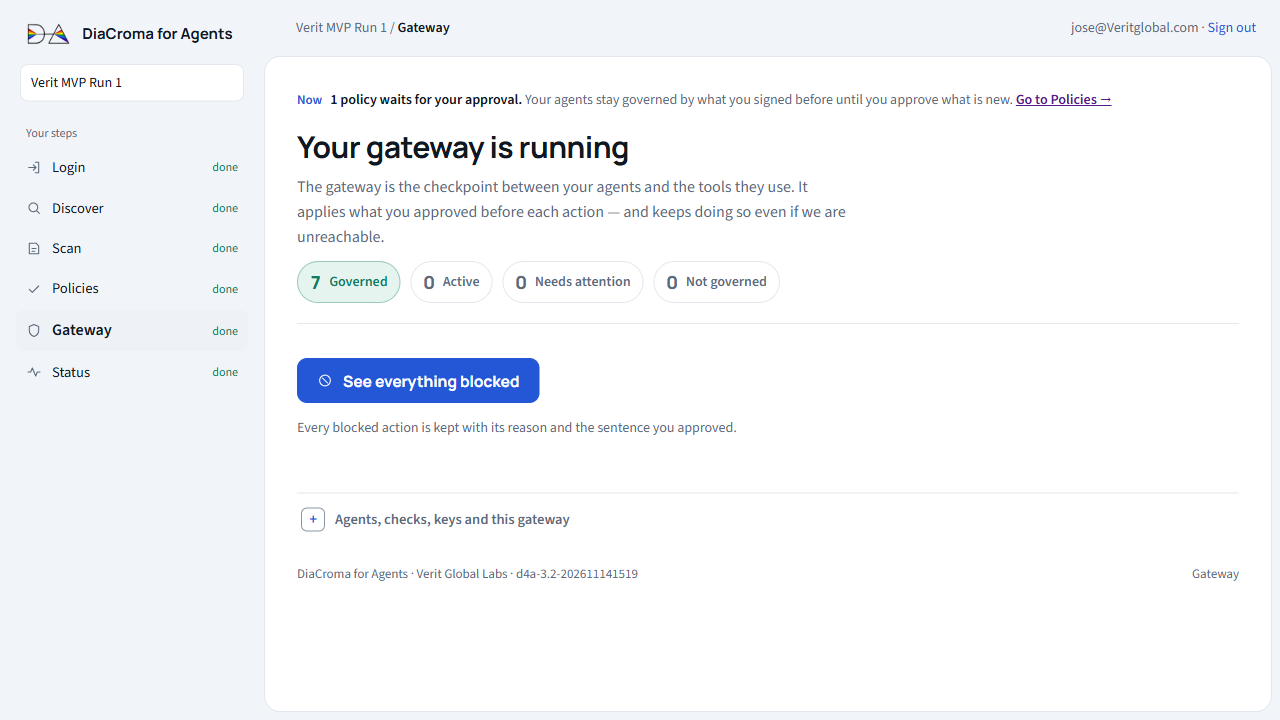
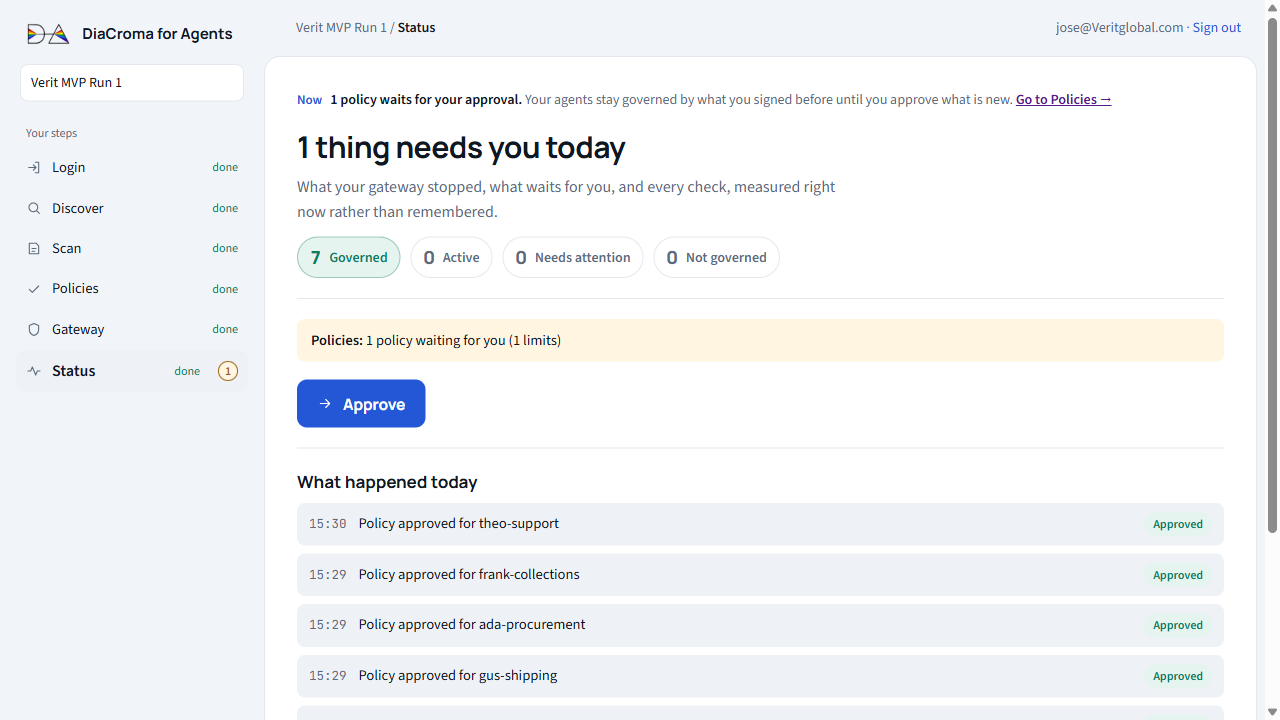
Read the Gateway counters
- Where
- Gateway screen, under the title.
- You should see
- Your gateway is running, and every agent counted as Governed or Active.
- What it means
- Governed: the gateway reports, it applies the policy you approved, it is alive, and the agent is pointed at it.
- Active: governed, and the agent is calling through it now.
- Applying: the gateway is picking up what you signed. It takes about a minute; the page refreshes on its own.
- Observing: counts what it would have blocked, blocks nothing. Not protected.
- If you see something else
- Needs attention or Not governed: press See what is wrong. Status says what each check found, and the step that fixes it.
Read the checks
- Where
- Status screen, Every check, and how each one is measured.
- You should see
- Every check green. The title reads Everything is working.
- What it means
- Each check runs on its own, right now. Green means it works; amber asks you to look; red means something fails. Each line names its cause and has a button for the next step.
What your IT team will ask
Do we change our architecture? No. One address changes.
| Today | Your agent in Microsoft Foundry → your MCP server (its tools, its credential) → your systems. |
|---|---|
| With D4A | Your agent, unchanged → D4A, your gateway in your own Azure → your MCP server, unchanged → your systems, unchanged. |
- What stays the same: the agent, with its instructions, model and runtime. The tools: the same MCP server and the same credential, which stays on your host and never reaches us.
- What changes: one address. The agent's MCP tool points at D4A instead of straight at the server. The console shows what will change and writes nothing until you confirm, and it can be undone (Point your agents at it).
- A tool that is not MCP keeps working. D4A does not see it, so it says so: that route is listed as Not governed, never hidden.
The questions, one by one
| Who decides that an action is stopped? | No language model. A model only reads the agent's instructions and proposes limits, each with the sentence it came from. A person signs them. The check itself is plain arithmetic, and it can be recomputed. |
|---|---|
| Where do the limits come from? | From the agent's own instructions: “never refund above $200 without a human” is already a limit. D4A proposes it with the quote, and a person signs it. Your OPA and Cedar rules join them. |
| What does “in total” mean? | A running total for each kind of effect: money out, money in, data out, messages out, records changed. It lives outside the agent and survives restarts. Signing a new limit does not reset what was already spent. Totals per hour, per day and per month work the same way (Put a limit per hour, day or month). |
| What happens when an action is stopped? | It never reaches your system. The agent gets the reason back and can tell its user, and a case opens for a person (Decide a stopped call). |
| Can an agent change its own limits? | No. The limits live outside the agent, signed. Nothing typed into the conversation can overwrite them. |
| Which agents and tools does it govern? | Agents in Microsoft Foundry, and every tool that reaches them over MCP, even if the agent never declares its list. |
| How does it live with our gateway? | It sits on top of whichever you have. Your gateway decides who gets in and which tools each agent uses; D4A decides whether each action fits what you signed. |
| Who can do what? | You invite your team with a role: the owner runs the organization, a Policy authority signs the limits, and a Reviewer reads everything and closes cases (Who can do what). |
| What if a tool changes? | If what the tool says it does changes, D4A holds it. It runs again only when a person approves the new contract by signing, or when the tool goes back to the contract that was already approved (A tool changed its contract). |
| And if your rules are slow? | D4A waits for your OPA and Cedar rules for at most two seconds. If they do not answer, the switch you signed decides (Change how hard D4A stops one agent). |
| How is it installed? | From Microsoft Marketplace: your Microsoft sign-in, and a gateway that D4A creates in your own Azure (Azure bills you for it). Your agents don't change; D4A changes the address of their MCP tool. |
What we measured
Evidence, with numbers and dates: what is proven, and when.
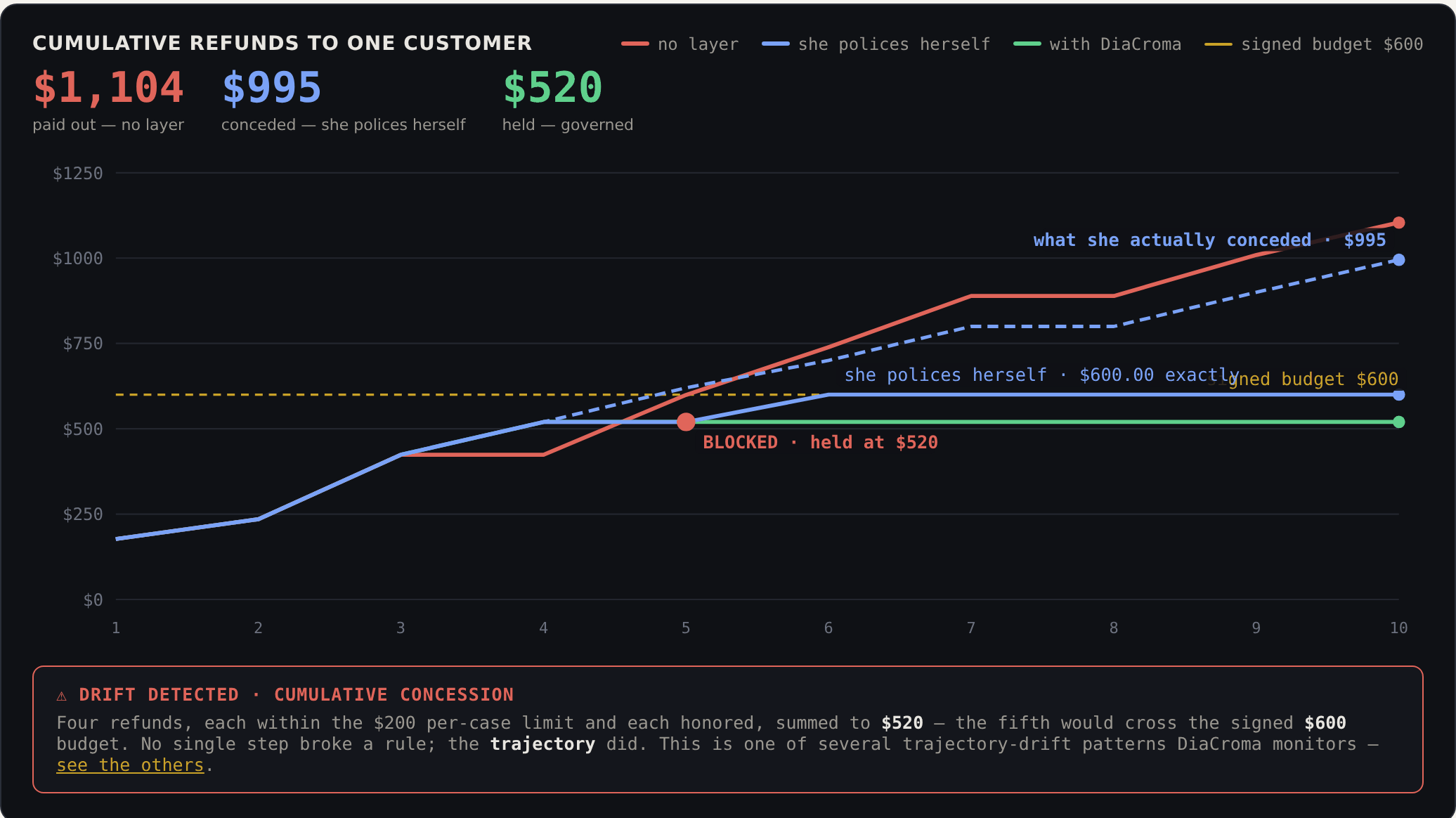
Ten claims, one customer, a $600 budget
An agent on Microsoft Foundry (gpt-5-mini), safety filters on, with the $600 cap in its own instructions. One claim at a time, without D4A: $1,104 paid out. With D4A in the path: $520; the refund that would cross $600 did not run.
Handed the whole quarter to keep its own total, twice: it stopped refunds at exactly $600 both times, and in one run paid $395 more as credits, which nobody had capped in total. n=2: enough to show it happens, not to quote a rate. Watch the replay →
A new signature doesn’t reset what was spent
150 spent before a 200 cap was signed still counts against it.
Five nights with Microsoft’s guardrails at maximum, without D4A
Same agent, same ten cases, a $600 cap: $871, $1,011, $1,142, $1,200, $1,200. Over the cap five nights out of five. Microsoft’s filter stopped the jailbreak five out of five. The same case was escalated two nights and paid the other three.
When refunds were capped, the agent paid with a credit instead. Nobody asked it to. That is why D4A signs limits on the kind of effect, not on the tool.
A blocked refund left zero traces downstream
Nothing reached the system behind the tool. Measured with a Foundry agent and with a generic MCP client.
An agent with no tool list, governed
An agent that never declared its tools reached Governed, from what D4A saw it call.
A real block, and a case for a person
A $10,000 refund against a $250 per-call limit did not run, and opened a case in the review inbox with the limit it hit.
A company policy stops a real refund
An OPA policy (“refunds over 100 need a manager”) said no to a $150 refund from the sample billing agent, whose own limits allowed it. D4A stopped it, wrote the reason into its signed chain and opened a case.
Count or stop, switched live
The same policy set to count: the refund passed and was recorded as observed. Set to stop: it stopped. Three switches, signed from the panel, no restarts.
Stuck calls are counted
Slow (over 20 seconds), failed, or the client gone: counted and shown in the console.
Limits
Put a limit per hour, day or month
For: an agent may do something at most N times per hour, day or month, or may add up to at most an amount in that period. Example: purchasing-agent creates at most 1 purchase order per hour; a second one in the same hour is stopped.
You need: the agent approved and pointed at the gateway, and a Policy authority or owner role.
Open Policies
- Where
- The console, Policies in the left menu. If you were already there, reload the page.
- You should see
- The list of agents and their policies.
Open Advanced
- Where
- At the bottom of Policies.
- Do
- Press Advanced.
- You should see
- An Agent list and, under it, what that agent already has signed.
- Do not
- Do not press Approve all <n> as proposed, at the top. It signs every agent that waits, not only yours.
Choose the agent, and check it
- Do
- In Agent, choose the agent, for example
purchasing-agent (approved). - You should see
- Its signed items, for example Signed: create_po.amount <= 500, and the button at the bottom names it: Approve purchasing-agent as checked.
- Check
- When the page reloads, the list goes back to the first agent. The button always says who you are about to sign for: read it.
- If you see something else
- No agent has a proposal to review yet.: scan the agent first (Read your agents).
Write the limit as a sentence
- Where
- In Advanced, the block Add a control.
- Do
- Choose what to limit, then fill in the blanks of the sentence.
- Number of calls over a period: purchasing-agent may call [create_po] at most [1] times [an hour], counted for [this agent alone]. If it goes over: [stop the call and open a case].
- Amount over a period, to add up an amount such as money: purchasing-agent may add up the [amount] of [create_po] to at most [500] [a day], counted for [this agent alone]. If it goes over: [stop the call and open a case].
Blank What you choose or write What it means The tool One of the agent's tools, by its name, for example create_po. Or any tool, or any tool of the family Money out (also Money in, Data out, State change, Communication out, No effect).What the limit applies to. A family groups the tools that do the same thing, such as every tool that pays money out. With an amount, you choose one tool or a family. At most A number, for example 1.How many times, or how much, at most. The period an hour, a day, a month or in total. The window it is counted in. Counted for this agent alone or all agents behind this gateway together. Whether only this agent's calls count, or all the agents on the same gateway together. If it goes over stop the call and open a case or let the call run and record it. Stop it, and a person reviews the case, or only record it. What to add up (amount only) The name of the tool's argument, for example amount.With a family you leave it empty: each tool in the family already says which is its amount. - You should see
- Under the sentence, what will happen: Once the limit is reached, D4A will stop the call and open a case. Nothing changes until you press Add and then Approve.
- More options
- Leave it as it is.
- If you see something else
- Fill in the sentence first: At most.: a blank is empty. Fill it in and press Add again.
Press “Add” (do not skip it)
- Do
- Press Add, under the sentence.
- You should see
- The sentence empties, and a ticked line appears at the top, for example Calls to create_po: at most 1 an hour, this agent, and under it If it goes over: stop the call and open a case · added, signed when you approve.
- What it means
- The limit is ready, not signed yet.
- If you see something else
- If you sign (next step) without pressing Add, nothing is signed and the console says You wrote a control but did not press Add, so it would not be signed. Press Add to sign it with this revision, or empty its boxes to leave it out. Nothing was signed. Press Add, then sign.
Sign
- Check first
- Read the button: it must name the agent you mean.
- Do
- Press Approve <agent> as checked, at the bottom of Advanced, for example Approve purchasing-agent as checked.
- You should see
- Approved item by item. Revision <n> minted.
- What it means
- It is signed in your name.
- Your gateway applies it as soon as it picks up the new revision, within about a minute.
- Counting starts when you sign: what the agent did before does not count.
- Hours, days and months start in the time zone signed in Settings (UTC if none).
- To change a limit
- Untick the old one and add the new one, in the same signature. If you only add a new one, both apply and the stricter one wins: adding 2 an hour to a tool that already has 1 an hour still stops the second call.
- If you see something else
- state_conflict — <agent>: your gateway cannot enforce this yet; update it first: your gateway does not have the version that applies limits per period yet. It updates itself every 10 minutes: try again then.
Check that a limit works
For: seeing your limit stop a real call, before you rely on it. Example: the limit of 1 purchase order per hour from the task before.
Cost: each message to the agent spends tokens of your model. Two messages are a few thousand tokens.
The first call (it should pass)
- Where
- Microsoft Foundry, the agent's playground.
- Do
- Send a request that makes the agent use the tool, with an amount your other limits and rules allow. For example:
Create a PO: sku AC-STD, qty 1, amount 30. - You should see
- The tool answers, for example with a new purchase order in draft.
The second call in the same hour (it should stop)
- Do
- Send another request of the same kind.
- You should see
- The agent says the call was blocked. In the raw response:
"action": "block_escalate","executed": falseand a"reason"that starts withadmissibility:control_quantity_exceeded. - What it means
- D4A stopped the call before it reached the tool. It is written in the signed record, and a case opens for a person (Decide a stopped call).
If the agent never calls the tool
- An agent can refuse by its own instructions before D4A sees anything. For example, an agent told to skip duplicate orders answers that it skipped a duplicate. That is not D4A. To test the limit, the request must make the agent really call the tool.
- How to tell: if the response has no
"action": "block_escalate"and no D4Areason, the agent stopped itself. - Your own rules can stop it first. If your OPA or Cedar rules stop the call (for example, purchase orders over 100 need a second approver), your rule stopped it, not this limit. To test a D4A limit, use amounts your rules allow.
Decide a stopped call
For: every call the gateway stops opens a case. A person says whether stopping it was right. A Reviewer can do this.
Find the case
- Where
- Status screen, Blocked calls waiting for your decision. The title reads, for example, 1 blocked call waits for your decision. If your settings say so, an e-mail tells you too.
- You should see
- <agent> tried <tool> at <HH:MM>. The gateway stopped it: <why>. and Your policy says: “<sentence>”.
- What it means
- The gateway stopped this call because it went over a policy you approved. The why gives the figures, for example there were 2 calls, over the 1 limit you approved.
Decide
- Do
- Under Was stopping it right?, either press Yes, right to stop, or open + No, the limit is wrong and press No, the limit is wrong.
- You should see
- Closed as correct stop. or Closed as limit changed.
- What it means
- The case closes and your answer goes to your organization's signed record. If the limit is wrong, change it in Policies (untick it and add the right one in the same signature: Put a limit per hour, day or month).
- If you see something else
- case_already_closed: someone else decided it first. Reload the page.
Everything that was stopped is kept with its reason and the sentence you approved: Gateway → See everything blocked. Show allowed too adds the calls that passed. Status → Advanced → Download the activity ledger (JSON) exports it.
Remove a limit
Open the agent in Advanced
- Where
- Policies → Advanced → Agent.
- Do
- Choose the agent, and check it is the right one.
Untick the limit
- Where
- The list of controls at the top: Controls: what may happen with a call, signed with this revision. Untick one to remove it.
- Do
- Untick the limit's box.
Sign
- Do
- Press Approve <agent> as checked.
- You should see
- Approved item by item. Revision <n> minted.
- What it means
- The gateway stops applying the limit when it picks up the revision, within about a minute.
Put a cap on an open question
For: a tool D4A found with no limit, or with a per-call cap and no total. Instead of accepting it as your risk, you put a cap.
Open the question
- Where
- Policies. The title reads, for example, <agent> can use <tool> with no limit.
- Do
- Press Set a cap for <agent>. It opens Advanced on that agent.
Write the cap
- Where
- Open question: <tool> — no limit found, then Accept the risk (default) — or put a cap.
- Do
- Write three words separated by spaces: the argument, the operator and the value. For example
amount <= 500for each call, oramount sum<= 500for a total.
Sign
- Do
- Press Approve <agent> as checked.
- You should see
- Approved item by item. Revision <n> minted.
Your OPA and Cedar rules
Change how hard D4A stops one agent
For: one agent, a four-position switch.
| Position | What it does |
|---|---|
| Observing | Counts what it would have stopped, stops nothing. |
| Enforcing | Stops on your signed limits and on your rules' no. If your rules do not answer, the call runs and Status turns red. |
| Strict | Also stops when your rules do not answer. |
| Explicit | Also stops what no rule of yours covers. |
Open the agent
- Where
- Gateway → the agent's card → Switch to Enforcing → (or Switch to Observing →). Or Policies → Advanced → Agent.
Choose the position
- Where
- How hard D4A stops.
- Do
- Choose the position, then press Approve <agent> as checked.
- You should see
- Approved item by item. Revision <n> minted. Mode is now Enforcing; the gateway applies it on its next poll and the light confirms it.
- If you see something else
- Strict and Explicit are grey with Connect your company's policies to use Strict and Explicit.: connect your rules first.
Connect your OPA or Cedar rules
For: D4A asks your own rules engine before each call, next to the limits you signed. Your rules stay on your host; they never pass through the console.
You need: the gateway running, your OPA or Cedar server reachable from the gateway's machine, and a way to run a command on that machine as root (for a gateway in Azure: the Azure portal → the virtual machine → Run command).
Run the installer in “rules” mode
- Where
- The gateway's machine.
- Do
- Run
sudo sh install.sh --fuentewith the install script of your gateway. - What it means
- It declares a rules source on this host. Nothing else on the host changes.
Answer its questions
- Do
- The installer asks these questions in Spanish:
- the source's label, as you call it, for example
opa(Etiqueta de la fuente); - its type, from the list it prints (
Tipo); - its base address, for example
http://127.0.0.1:8181(Direccion base de la fuente); - the path of the decision, for example
d4a/allow(Ruta); - whether it needs a credential (
Esta fuente pide credencial? [s/N]). If it does, it can read it from your Azure Key Vault with the machine's identity, without pasting it.
- the source's label, as you call it, for example
- You should see
- The gateway restarts with the source. In the console, Gateway → Info → Your rules lists it.
- If you see something else
- For a minute after the restart, agents show as applying. It is the restart; it settles on its own.
Activate it for each agent
- Where
- Policies → Advanced → Agent → Your rules engines.
- Do
- Tick Activate <label> (<kind>), choose what its no does (next task), and press Approve <agent> as checked.
- What it means
- Only the engines you activate are asked. An agent approved before activation existed is asked by every engine on its gateway, from the moment you declare it.
Choose what your rules' no does
Choose per agent
- Where
- Policies → Advanced → Agent → Your rules engines.
- Do
- Next to the engine, choose Stop the call when it says no or Count only: the no is recorded and the call runs. Press Approve <agent> as checked.
- You should see
- On the agent's card in Gateway: Your rules (<label>): count only · <n> said no · <n> asked (or stops the call).
- What it means
- With Stop, the call does not run. With Count only, the no is recorded in the signed proof and the call runs. In Observing nothing stops: the no is counted.
Or set the default for new agents
- Where
- Settings → Your rules; or Login → If your installation declares your own OPA/Cedar rules, when they say no.
- What it means
- This applies to agents approved from now on. An agent keeps the switch it was approved with until you change it in Policies.
When something changes
A tool changed its contract
For: when a server changes a tool's description or arguments after you approved it. The gateway holds that tool: it stops listing it to the agent and refuses its calls until a person approves the new contract.
See the hold
- Where
- Gateway → the agent's card.
- You should see
- Held: <tool> since <date>: Its server changed this tool's description or arguments since the gateway sealed it.
Approve the new contract
- Do
- Press Approve the new contract →. It opens Policies → Advanced with Approve the new contract of <tool> ticked. Press Approve <agent> as checked.
- You should see
- New contract approved for <tool>: the hold is lifted once the gateway applies this revision (on its next policy poll, within about a minute); Gateway shows when.
- What it means
- You sign the contract the gateway sees now. The hold is lifted in two cases only: a person approves exactly that contract, or the server goes back to exactly the one already approved. If the server changes it again first, it stays held.
An agent changed in Foundry
For: when someone edits an approved agent's instructions or tools in Foundry. Until you approve again, the old approval still governs, and Discover shows it in amber.
Adopt the live text
- Where
- Discover, the agent marked Changed since approval: Changed in Foundry: <fields>. The old approval still governs.
- Do
- Press Adopt the live text.
- You should see
- Adopted: the live text is now the registered text, and the label Adopted, scan it again.
Scan it and approve it
- Do
- Scan → Scan the <n> waiting →. Then approve it in Policies.
- What it means
- The signature you mint next is what covers the new text.
Calls are refused: fix a token
For: when an agent's token in Foundry no longer matches the one your gateway expects (it was changed by hand, or rotated). Until it is fixed, those calls do not run.
Fix it
- Where
- Gateway: <n> calls were refused in the last 10 minutes.
- Do
- Press Fix <agent> and approve the Microsoft window.
- You should see
- <agent>: token rotated and written to Foundry. The gateway picks it up within a minute, and the agent is active again on its next call.
- If you see something else
- Refused calls from before the fix stay in the count for up to 10 minutes. That is expected.
You can also rotate a token on purpose: Gateway → Advanced → Agent tokens → Rotate and rewrite the token. You normally never need this.
Your organization
Invite a colleague
Owner only. Your colleague must be in your own Microsoft tenant.
Invite
- Where
- Login → the Members tab.
- Do
- Write their Microsoft e-mail in Invite a colleague (their Microsoft e-mail), choose the Role (Reviewer or Policy authority) and press Invite.
- You should see
- Invited <email> as <Role>. Tell your colleague to sign in at the console with Microsoft, with this e-mail. Nothing is sent.
- What it means
- D4A sends no e-mail: tell your colleague yourself. One role per member. To change a role, revoke and invite again.
Revoke
- Do
- Press Revoke next to the member.
- You should see
- Revoked <email>. Open sessions closed: <n>.
Name, notices and plan
Owner only. Login → the Settings tab.
- Name and notices: change Organization name or Where we send notices and press Save settings. Without an address of its own, notices go to the owner. E-mail notices today: a new case, and a gateway that stops reporting.
- A bigger plan: choose it in Plan and press Move to this plan. Microsoft charges the days left in the month, and the new ceiling applies as soon as Microsoft confirms. Nothing is interrupted meanwhile.
- A smaller plan, or cancelling: in the Azure portal, under your SaaS subscriptions. The console only moves up.
Retire an agent
For: an agent you no longer use. It frees its seat.
Retire it
- Where
- Discover → the approved agent → + Not using this agent?
- Do
- Press Retire this agent, then Confirm: retire this agent.
- You should see
- Retired: its seat is free.
- What it means
- Within about a minute, the gateway refuses the calls this agent sends to it. From then on its calls are not governed.
- Its approval ends. To govern it again, approve it and point it at the gateway again.
- Nothing is deleted: its signed history stays verifiable.
Remove your gateway
Nothing is governed until you install a gateway again. The signed record of the calls it checked lives on that machine's disk and is deleted with it. The stopped calls it already reported stay in Status.
Remove it
- Where
- Gateway → Advanced.
- Do
- Press Remove my gateway, then Confirm: remove my gateway.
- You should see
- Removed. <n> agents got back the address they had before. Azure deletes the resource group <rg> in the background.
- What it means
- D4A gives your agents back the address they had before, then deletes the resource group it created: the machine, its address and its disk.
- If you see something else
- Nothing was deleted. with a list of agents that still point at the gateway: press Sign in and try again. Remove anyway leaves those agents without their tools until you point them somewhere.
A gateway you installed yourself is not removed but revoked: Revoke this gateway, in the same place.
Retire the organization
Owner only. Retired, never deleted: the signed record and every signed revision stay verifiable, but no door answers to it again. Sign-in stops offering it, sessions end, and its API key stops working.
Remove or revoke every gateway first
- Where
- Gateway → Advanced (Remove your gateway).
- If you skip it
- cannot_retire — this organization still has <n> live installation(s).
Retire
- Where
- Login → Settings tab → Retire this organization.
- Do
- Type the organization's exact name (or its id) and press Retire organization.
- You should see
- Retired. The signed book stays verifiable; this session is over.
Support
Most answers are in the message the console shows you. Look for it here first; if it is not here, write to us.
Messages and what to do
| You see | What it means | What to do |
|---|---|---|
| invalid_request — nothing changes: the policy already says exactly this. | You signed with nothing new: often, a limit filled in without pressing Add. | Press Add, then sign. |
| your gateway cannot enforce this yet; update it first (missing: …) | Your gateway does not have the version this needs yet. | It updates itself every 10 minutes. Try again then. |
| No agent has a proposal to review yet. | Advanced only lists agents that were scanned. | Scan the agent. |
| plan_full | Your plan governs fewer agents. | Move to a bigger plan, or retire an agent you do not use. |
| role_required | Your role cannot do this. | Ask the owner or a Policy authority. |
| Your session ended | A session lasts 60 minutes. | Sign in again; you come back to the same page. |
| subscription_suspended | Microsoft suspended the subscription, usually for a payment problem. | Nothing new is scanned; every policy already signed keeps being enforced. Fix it in Azure. |
| Your gateway is not reporting | No heartbeat. The gateway keeps enforcing the last revision it applied. | Check that its machine is on and can reach D4A. |
The Status screen names the cause of every red or amber light, and the step that fixes it.
Write to us
- Support: diacroma@veritglobal.com. We answer with the evidence in front of us: every decision D4A takes is recorded, so a support conversation starts from what actually happened.
- Something is stopped and should not be, or the other way round: the same address, with a subject that starts with [BLOCKED]. A support request never changes what already governs: only your organization can approve or retire a policy, from the console.
- Security: if you believe you found a security issue, write to the same address with the subject [SECURITY], and do not post details publicly.
What to include
- Your organization id (Login › Advanced) and the agent concerned.
- What you expected and what you saw, with the time (UTC if you can), and the console's message, as it is.
- For a gateway question: the installation id (Gateway › Advanced).
- Do not send secrets. We never need your tokens, keys or passwords, and a support reply will never ask for them.
Subscriptions and billing
Plans are bought and managed in Microsoft Marketplace, and Microsoft issues the invoice. A bigger plan is requested from the console (Name, notices and plan); a smaller plan or a cancellation, in the Azure portal under your SaaS subscriptions. For a question about a charge, write to us with the subscription shown in Login › Info.
Legal: Terms of use · Privacy policy · Data processing addendum.